
Learn Canva for beginners with this complete 2026 guide. Discover design tips, Canva tools, and how to create stunning graphics easily.
Canva for Beginners: Complete Guide to Start Designing in 2026
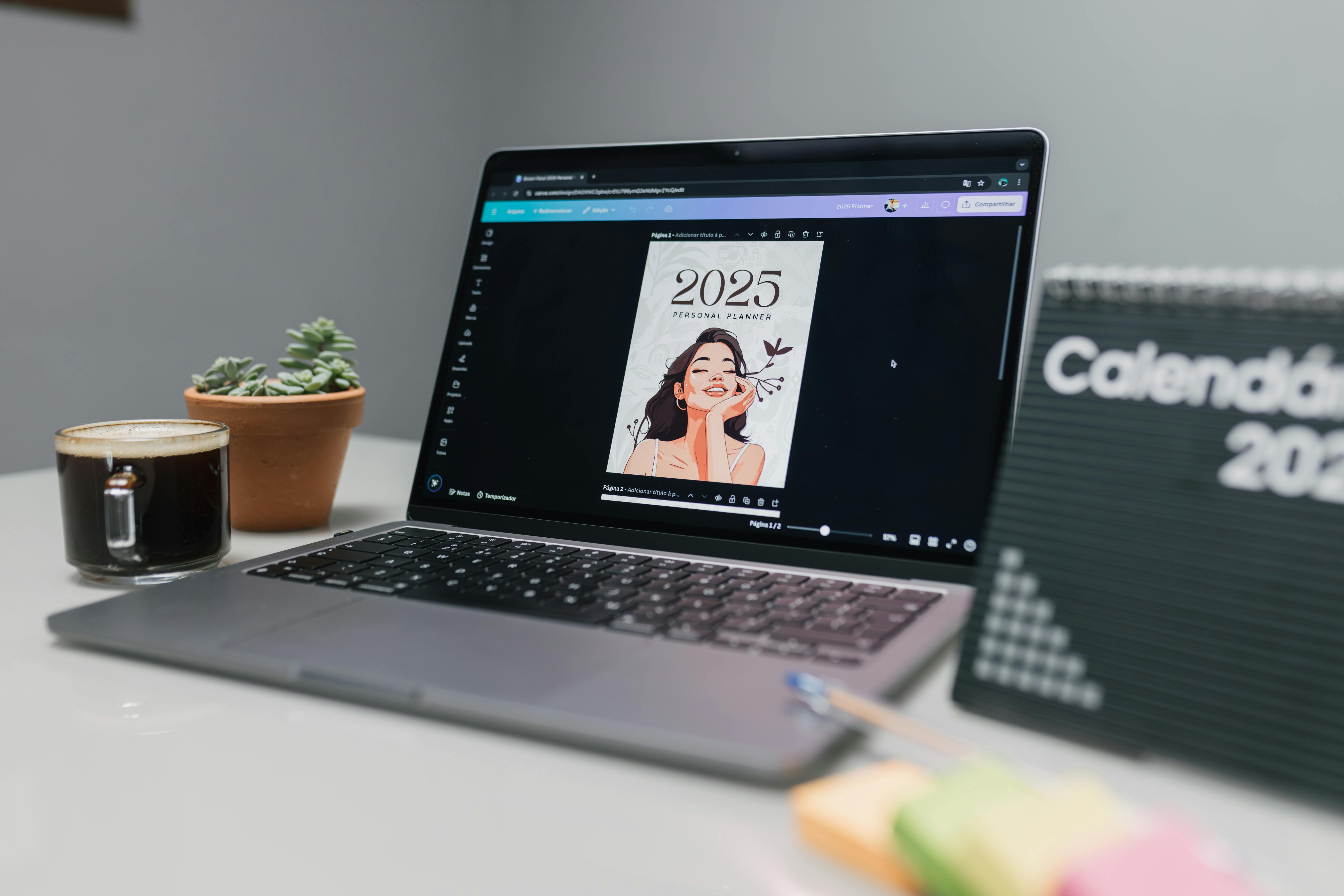 Designing used to feel like a secret club where only Photoshop wizards were allowed inside. One wrong click and suddenly your poster looked like a school project attacked by rainbow glitter.
But in 2026, things have changed completely.
Thanks to Canva, anyone can create professional-looking designs without having graphic design experience. Whether you are a student, freelancer, content creator, or someone who simply wants better Instagram posts, Canva has become the ultimate beginner-friendly design tool.
This guide on canva for beginners will help you understand how Canva works, how to use its features, and how you can even make money using your designs.
What is Canva?
 Canva is an online graphic design platform that allows users to create stunning visuals using drag-and-drop tools.
You can design:
- Social media posts
- YouTube thumbnails
- Presentations
- Posters
- Resumes
- Logos
- Business cards
- Reels and videos
The best part? Canva offers both free and premium features.
The free version is powerful enough for most beginners, while Canva Pro unlocks advanced tools like AI features, premium templates, and brand kits.
For many people learning graphic design for beginners, Canva feels less like software and more like digital LEGO blocks. Everything snaps into place beautifully.
Why Canva is Perfect for Beginners
1. Easy Drag-and-Drop Editor
Canva removes the complicated learning curve of traditional design software.
You simply:
- Drag elements
- Drop images
- Edit text
- Change colors
No technical expertise required.
2. Thousands of Templates
 One of the biggest reasons people search for canva for beginners is because templates save enormous time.
Need an Instagram post? Canva already has thousands ready.
Need a YouTube thumbnail? Done.
Need a resume at 2 AM before a deadline monster eats your confidence? Canva has that too.
3. No Design Experience Needed
Most beginners fear graphic design because they think creativity is a superpower only artists have.
Truthfully, good design is mostly about practice and simplicity.
Canva helps beginners create clean visuals even if they’ve never designed before.
4. Works on Mobile and Desktop
You can use Canva almost anywhere.
Whether you’re designing from a laptop or editing Instagram stories on your phone while pretending to study in class… Canva works smoothly across devices.
How to Use Canva for Beginners
If you’re wondering how to use Canva, follow this simple process.
Step 1: Create Your Canva Account
Visit Canva Official Website and sign up using:
- Google account
The setup takes less than two minutes.
Step 2: Choose a Template
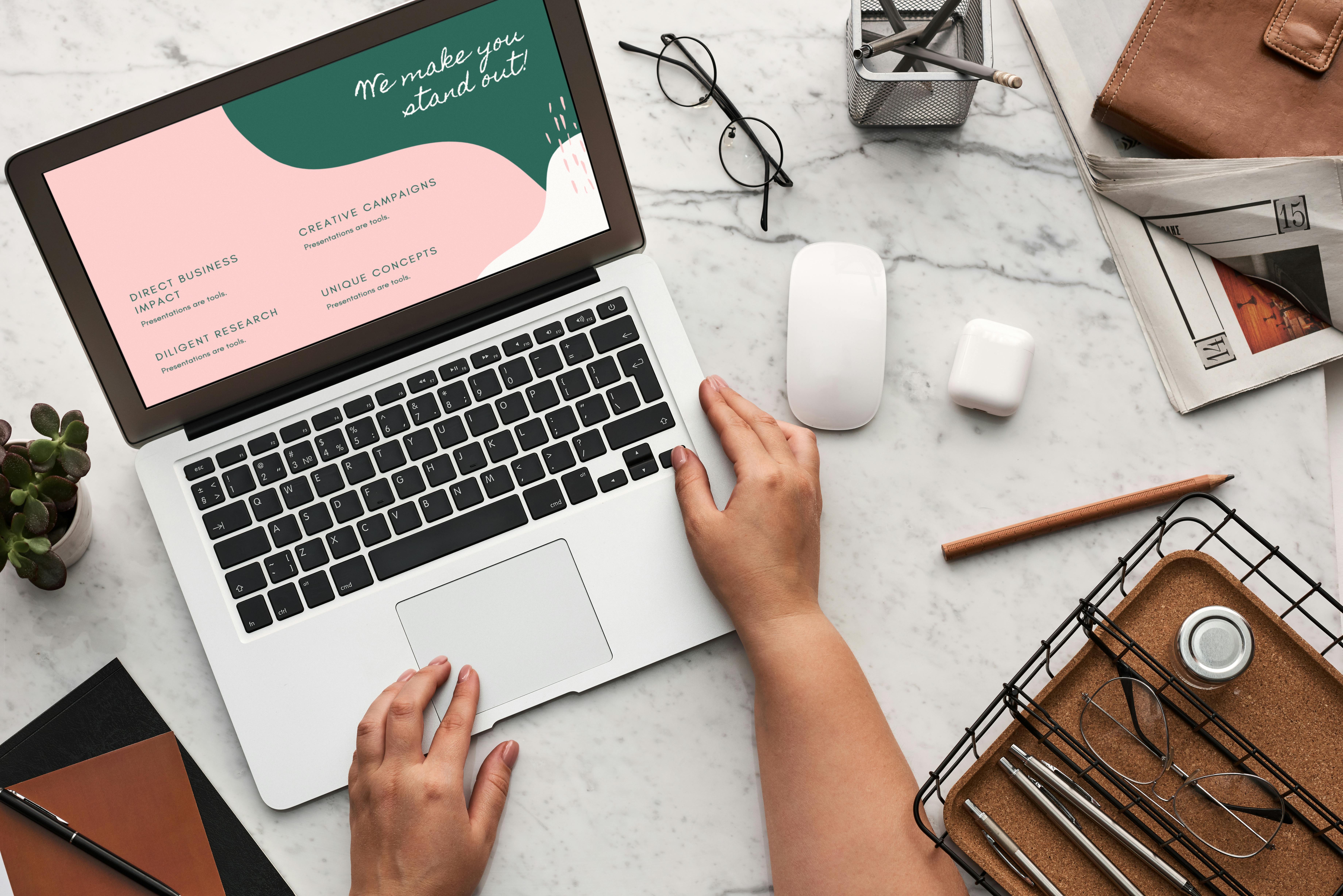 Search for what you want to design:
- Instagram post
- Presentation
- Thumbnail
- Flyer
- Resume
Templates are already professionally designed, so beginners can customize instead of creating from scratch.
Step 3: Edit Your Design
This is where the fun begins.
You can:
- Change text
- Add images
- Adjust colors
- Upload your photos
- Use icons and stickers
Think of it like decorating a digital room.
Step 4: Download Your Design
Once finished, click Download.
Canva supports:
- PNG
- JPG
- MP4
And just like that, your design is ready for social media, printing, or freelance work.
Best Canva Features Beginners Should Use
 Magic Resize
This feature transforms one design into multiple sizes instantly.
Create one Instagram post and convert it into:
- Story format
- Facebook post
- LinkedIn banner
AI Design Tools
Canva now includes AI-powered tools that help with:
- Text generation
- Image editing
- Background creation
- Content ideas
These features save beginners massive amounts of time.
Background Remover
Perfect for product photos and thumbnails.
One click and Canva removes the background automatically.
No painful editing battles required.
Canva Templates
Templates are the heartbeat of Canva design tutorials.
Instead of staring at a blank screen like a confused potato, beginners can edit ready-made professional layouts.
Brand Kits
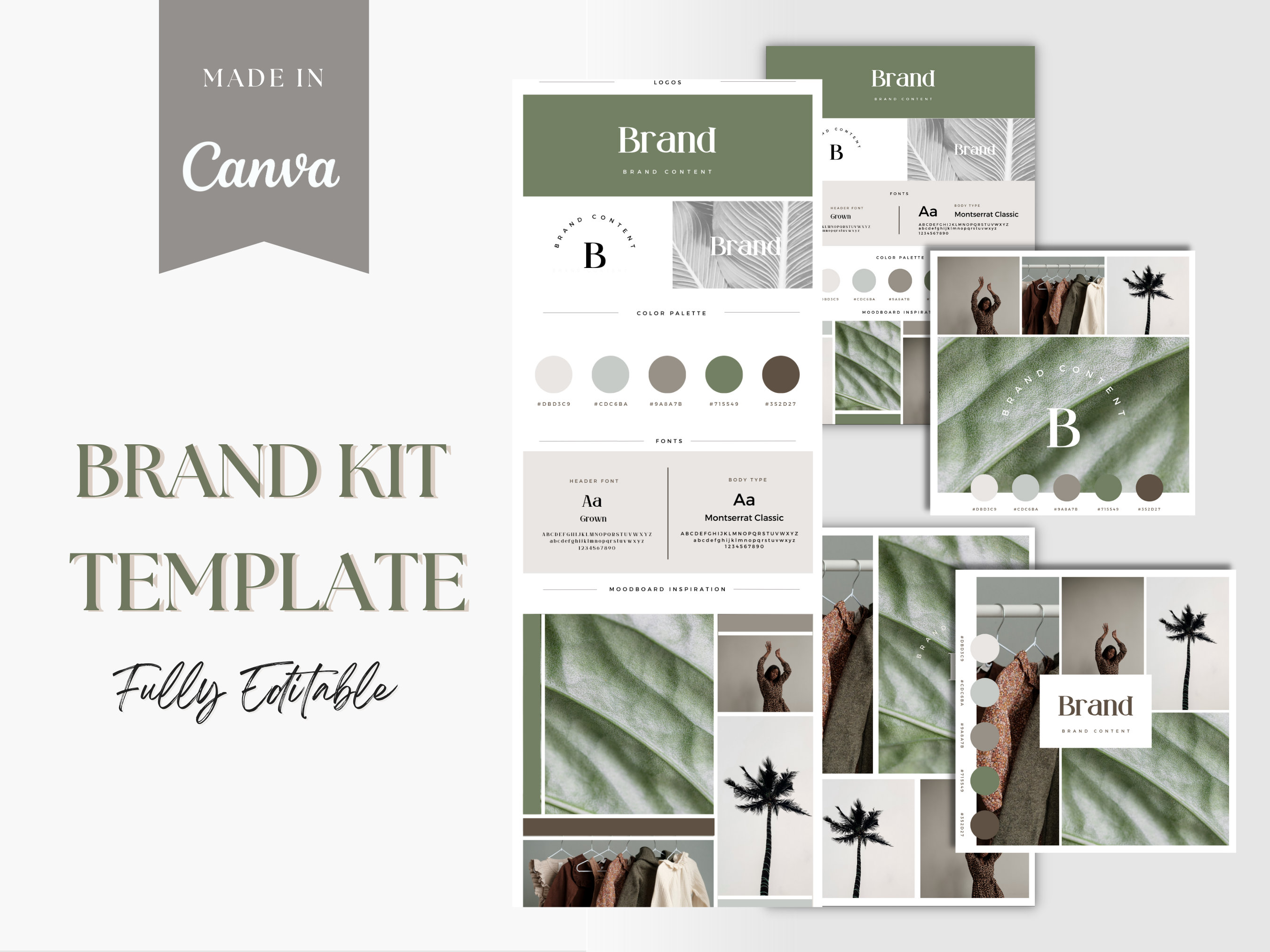
Useful for freelancers and creators.
You can save:
- Brand colors
- Fonts
- Logos
This keeps your content visually consistent.
Canva Design Ideas for Beginners
If you want practice projects, start with these:
Social Media Posts
Perfect for Instagram pages and personal branding.
YouTube Thumbnails
High-quality thumbnails improve clicks dramatically.
Resumes
Modern Canva resumes look far better than plain Word documents.
Presentations
Students love Canva for presentations because it makes slides look cinematic instead of sleepy.
Posters and Flyers
Useful for events, promotions, and college activities.
Freelance Client Work
Many freelancers use Canva for:
- Social media designs
- Ad creatives
- Brand posts
- Marketing graphics
Common Canva Mistakes Beginners Make
Using Too Many Fonts
Two fonts are usually enough.
More than that and your design starts looking like a confused carnival poster.
Overdesigning
Beginners often add:
- Too many stickers
- Too many colors
- Too many effects
Simple designs usually perform better.
Ignoring Spacing
Good spacing makes designs feel clean and professional.
Crowded designs feel visually exhausting.
Poor Color Choices
Avoid random neon explosions unless your design theme is “alien disco party.”
Stick to complementary colors.
Tips to Learn Canva Faster
Want to improve quickly? Follow these strategies.
Practice Daily
Even 20 minutes daily improves your skills massively over time.
Follow Design Trends
Study modern Instagram posts, YouTube thumbnails, and advertisements.
Great designers are also great observers.
Recreate Popular Designs
One of the best Canva tips and tricks is copying layouts for practice.
This trains your design eye naturally.
Watch Tutorials
YouTube is filled with amazing canva tutorial for beginners videos.
Learning visually makes Canva much easier.
Can You Make Money Using Canva?
Absolutely.
Many people now earn online using Canva skills.
Freelancing
Offer services like:
- Social media posts
- Thumbnails
- Posters
- Ads
Platforms like Fiverr and Upwork are filled with Canva-related freelance work.
Social Media Management
Brands constantly need visual content.
If you know Canva and basic marketing, you already have a valuable skill.
Selling Templates
Some creators earn passive income by selling Canva templates online.
One design can generate money repeatedly like a tiny digital vending machine
Content Creation
YouTubers, bloggers, and influencers use Canva daily for branding and visuals.
Learning Canva can directly support your online career.
How to use canva like a pro: Start by choosing a template that matches your goal, then customize colors, fonts, and layout to create a consistent brand look — practice these steps in every project to master canva for beginners.
Learn to use the Elements and Text panels efficiently: search with targeted keywords, lock and layer items, and apply effects like transparency and shadows for polish — these habits speed up any workflow and make canva for beginners projects look professional.
Use the Uploads and Brand Kit (or a simple saved palette and font set) to keep assets ready, and export using the correct file type and size for your platform to avoid quality loss — doing this turns basic designs into pro work and helps canva for beginners users deliver client-ready pieces.
Finally, practice shortcuts, explore the templates library, and try one new tool (like background remover or animated elements) each week to level up quickly; these small habits are the fastest route from novice to confident canva for beginners creator.
Conclusion
Learning canva for beginners is one of the smartest skills you can start in 2026.
You don’t need expensive software.
You don’t need advanced artistic skills.
You just need curiosity and practice.
The beautiful thing about Canva is that it turns beginners into creators faster than ever before.
Your first design may not look perfect.
Neither did anyone else’s.
But every great designer once started with a blank screen and a slightly nervous click on the “Create Design” button.
So start today.
Experiment freely.
Design boldly.
Because somewhere online, your future freelance client, Instagram audience, or business opportunity is waiting for the skills you haven’t learned yet.
FAQ’s Section
1. Is Canva free for beginners?
Yes, Canva offers a powerful free version with templates, fonts, graphics, and editing tools perfect for beginners.
2. Can students use Canva for free?
Yes, Canva is widely used by students for presentations, resumes, and social media projects.
3. How long does it take to learn Canva?
Most beginners can learn basic Canva designing within a few days of practice.
4. Can I earn money using Canva?
Yes, many freelancers and creators earn money by designing posts, thumbnails, templates, and marketing graphics using Canva.
5. Is Canva good for graphic design beginners?
Absolutely. Canva is one of the easiest platforms for graphic design for beginners because of its drag-and-drop interface and ready-made templates.